Use DataStern in Langdock
- Connection type:
- you add it yourself as a remote MCP integration. It isn't in Langdock's directory.
- You need:
- a Langdock workspace where you may create integrations, and a DataStern account with at least one knowledge base connected.
In a firm, one person sets DataStern up once and shares it with the team (see For your team below). Colleagues then only sign in with their own DataStern account. If your Langdock is in German, the German button names are in brackets.
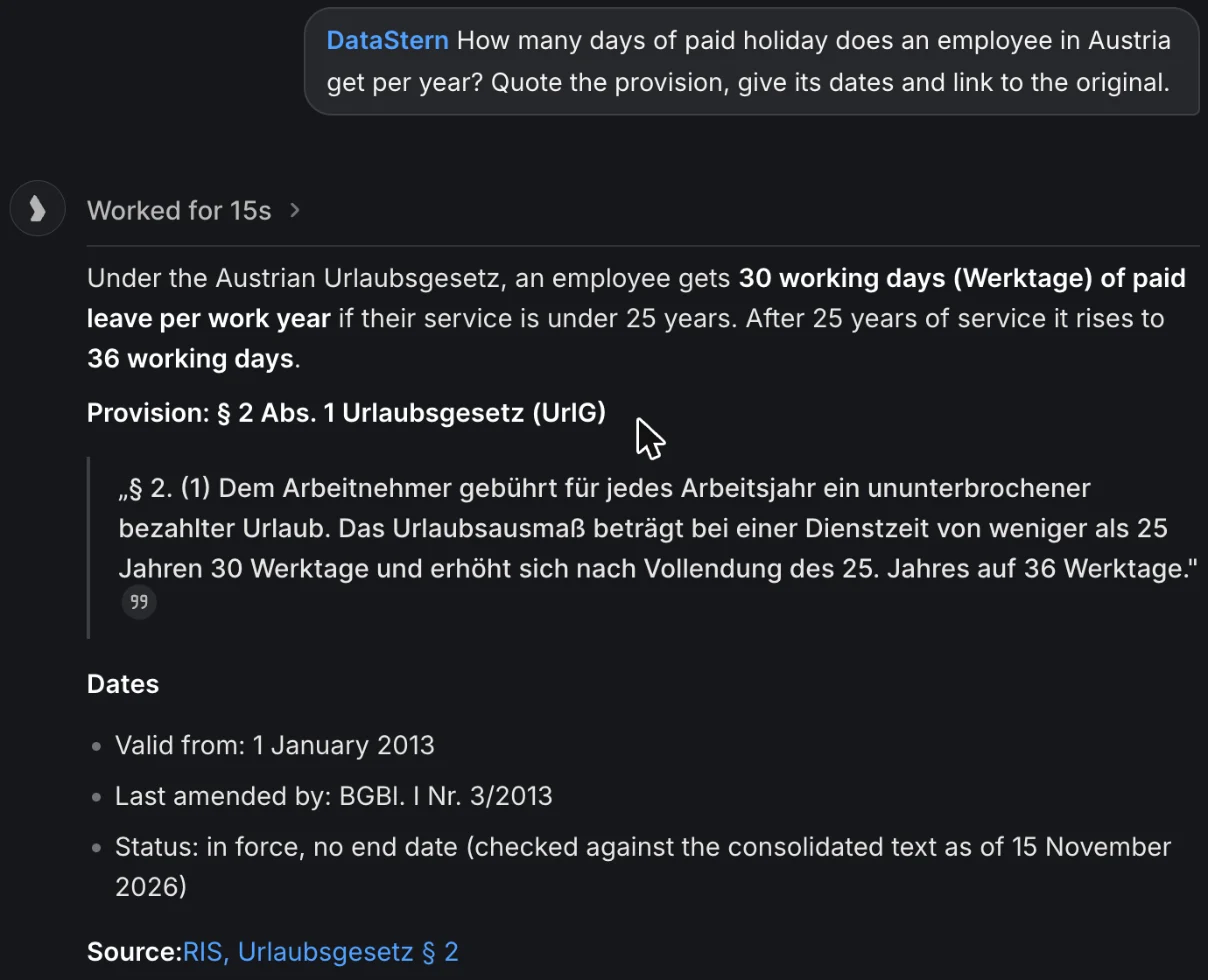
Step 7: Ask your first question.
For your team
At first only the person who set DataStern up sees it in Langdock. Share it once, then each colleague signs in with their own DataStern account: their searches count against their own account, and nobody shares a login.
Step 1: Share the integration.
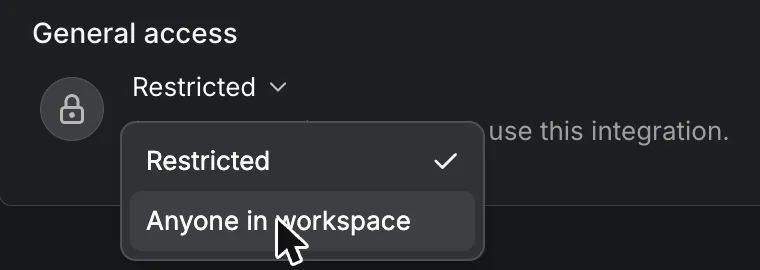
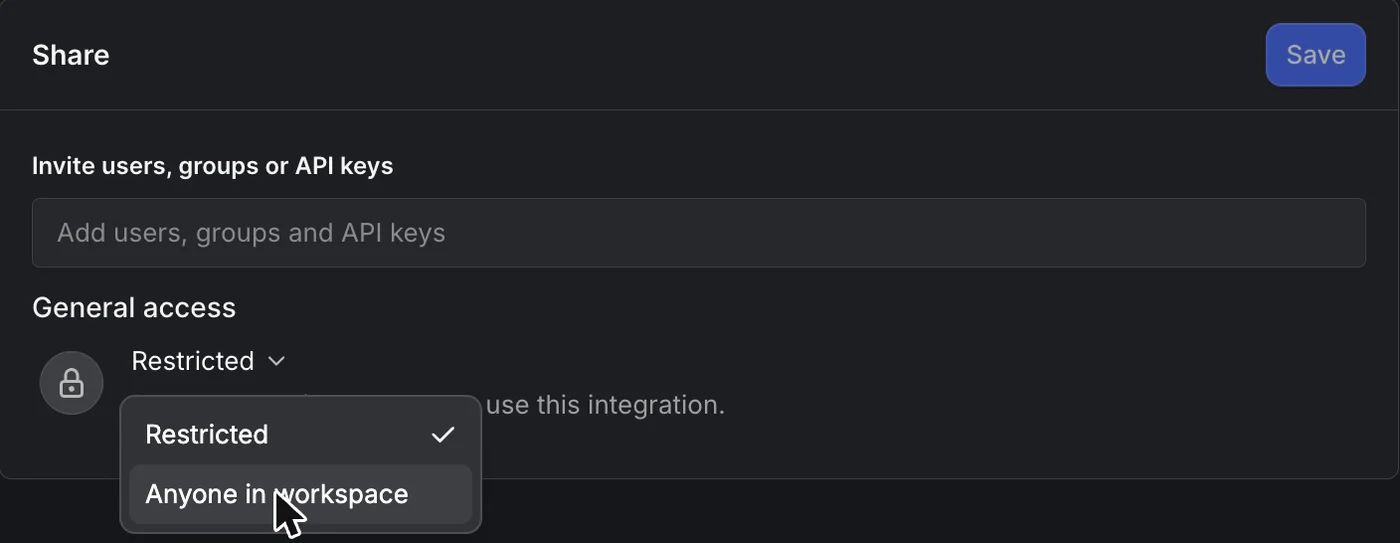
In Langdock open Plugins, then DataStern, then the Share tab (Teilen). Under General access choose Anyone in workspace, or add people and groups in the field above it. Choose Save.
Step 2: Each colleague signs in once.
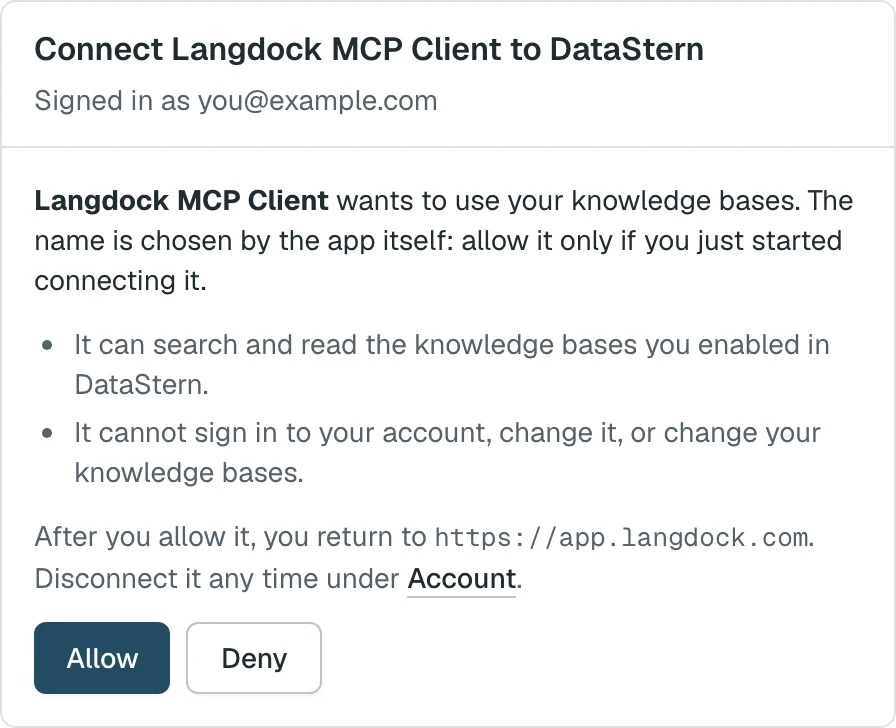
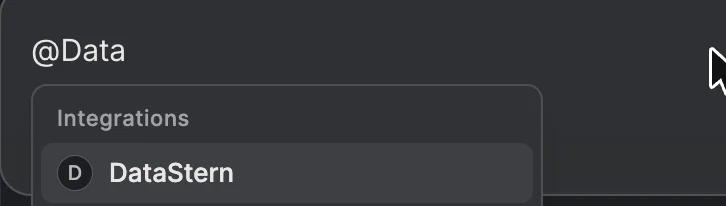
Colleagues don't create the integration again. They type @DataStern in a chat, sign in with their own DataStern account when Langdock asks, and choose Allow. Each needs a DataStern account with a knowledge base connected.
If something doesn't work
- The answer comes from the web, not from DataStern.
- Check that DataStern shows above your message. If not, type @DataStern and pick it.
- DataStern says no knowledge bases are connected.
- Connect one in DataStern under Knowledge bases, then ask again.
- DataStern answers that it cannot use its tools.
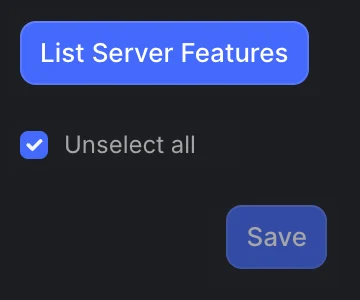
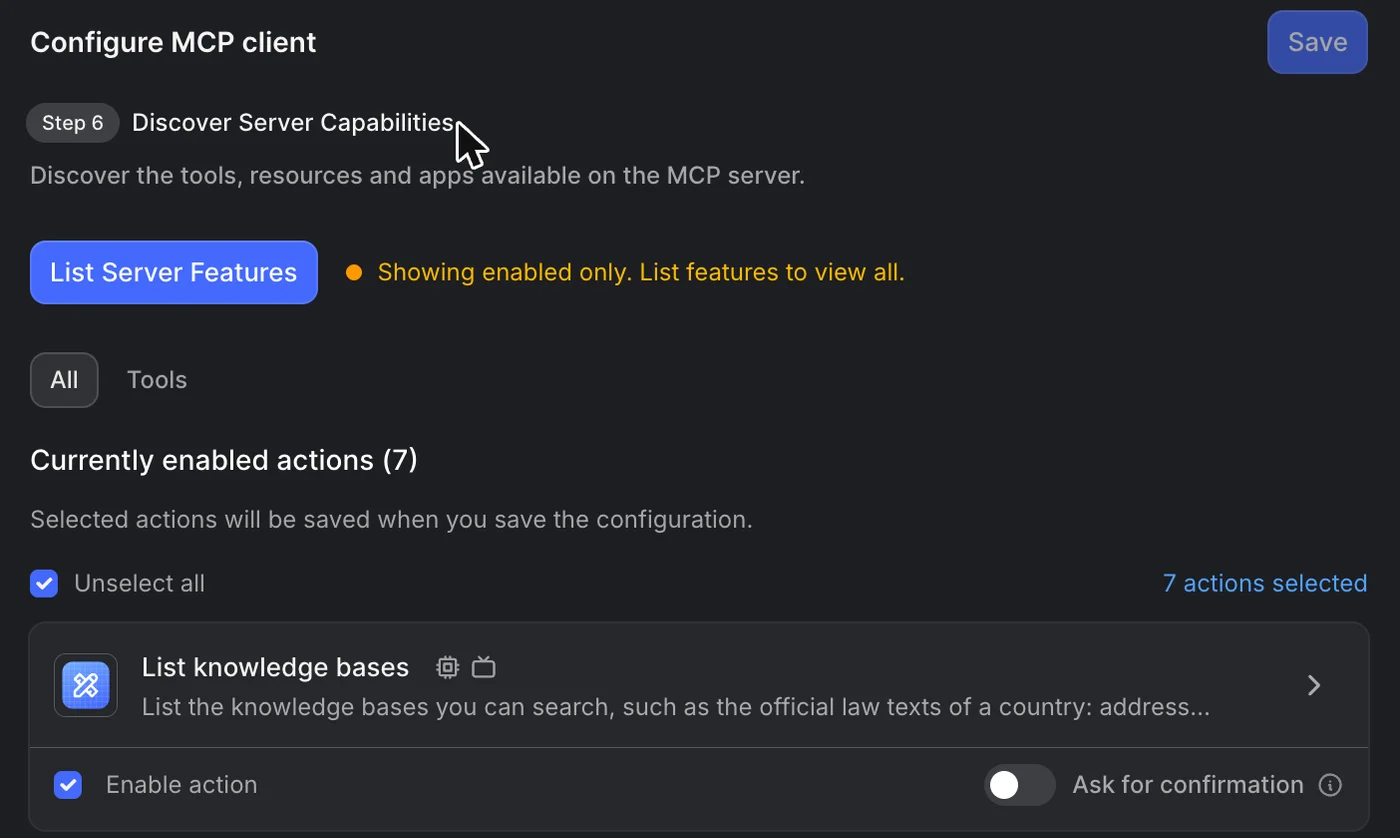
- Open the integration in Plugins and check that the seven actions are ticked and saved (step 5).
- The DataStern sign-in does not open or fails.
- Allow pop-ups for Langdock and try again. If it still fails, connect once in another browser, such as Chrome or Firefox, with the same Langdock account: the connection then works in every browser.
Langdock's menus can change. Last checked 15 Nov 2026.
Check the answer against the source
- Find the citation. Ask your assistant to show the act or document, provision, quoted passage and source URL when available.
- Open the original. Follow the source link. Compare the quotation with the official text and read the surrounding provisions.
- Check the date and scope. For legislation, check which version applies to your question. A retrieved passage is not evidence that all relevant rules or amendments were searched.
DataStern supplies reference material, not legal or tax advice. Your assistant can make mistakes even when it cites a source.
If the source is missing or the result does not fit
Ask for the exact provision and relevant date, or narrow the question to one act. If no source link is available, find the cited provision in the official publisher's system. If the requested date or subject is outside the collection, do not treat an empty result or refusal as proof that no rule exists.
Support
Something not working, or a question about DataStern in Langdock? Write to support@datastern.eu.